The Springboard tour finally arrives in Stockholm on October 27th. The event is an all day event about deploying Windows 7 and Office 2010 and is totally free to attend. More information at Springboard series website.
Month: September 2010
Bug with PXE booting pre-staged machines for deployment returns event 519
There is a bug in Windows Deployment Services (WDS) in Windows Server 2008 R2 which prevents your pre-staged computers from booting via PXE. In the Event logs on the WDS server you can find event 519 stating that there are duplicate machines with the same GUID or MAC address, even though this is not true. There is a hotfix for this problem which is available from http://support.microsoft.com/kb/2028840/en-us.
The event looks like:
Log Name:      Application

Source:        BINLSVC

Date:          2010-09-24 10:29:04

Event ID:      519

Task Category: BINLSVC

Level:         Error

Keywords:      Classic

User:          N/A

Computer:      wds1.contoso.local

Description:

Multiple machine accounts with the same GUID or MAC address were found in  Active Directory Domain Services. The Windows Deployment Services server  will use the first listed machine account.
MAC Address: {00000000-0000-0000-0000-00155D00C837}
GUID: {94651BB8-ED84-42C6-947A-218A66EE5A6C}
List of matching machines: CN=DEPLOYTEST1,OU=CONTOSO,DC=stenis,DC=local
Killing the myths: Group Policy Preferences for everyone!
September 20, 2010
Group policies, Windows 7, Windows Server 2008, Windows Server 2008 R2, Windows Vista
0 Comments
There is a very common misconception out there that Group Policy Preferences can only be created, managed and applied to your Windows machines if you are running your domain controllers with Windows Server 2008 or later. This is so NOT true.
What you have to do if you are stuck on domain controllers running Windows Server 2003 is to install the Remote Server Administration Tools on a Windows 7 (or Vista) client machine, add the feature Group Policy Management and then create a GPO in the domain and edit it, configuring the Group Policy Preferences of your choice. Voilà!
I do not know where this myth is coming from actually but the fact that GPO Preferences were introduced in Windows Server 2008 is the major reason I would assume.
Case of the mysterious issues with UAC in Windows 7 and Windows Server 2008 R2
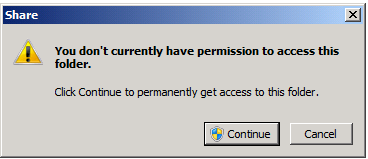
At the TechNet/MSDN after work I attended last week I got an interesting question on why a user (domain admin) gets a UAC popup on trying to access folders via Explorer which he knows for sure he is supposed to be able to access looking at the ACLs of the folder. Instead, when clicking OK on the UAC popup the ACL is populated with his account.
My first thought to this behavior was Explorer.exe not being able to elevate and the “split personality” i.e. the two security tokens involved when UAC is in effect. Here comes a more detailed explanation that I think is of interest to more. Note that this problem also covers some other scenarios such as AppLocker rules not appearing to work as intended for administrators. Read on to learn what is causing this.
First when UAC is enabled you get two security tokens when you log in, easily explained as one which contains the administrator privilege information and one which does not. Most of the times you run everything using the standard security token. When you for instance want to install software or change some system settings, then the security token containing the administrator privileges information is used.
If you do not explicitly request an application to launch with higher privileges, or the applications itself request higher privileges, all processes and applications run in the user context with the standard security token. Virtually all applications including Windows applications and processes are possible to elevate by right clicking and choosing “Run as administrator”. This is not true for Explorer.EXE though as all your attempts to elevate it will not result in any actual elevation. There are a few caveats with this and let us continue with the example of access certain files and folders.
So let’s have a look at what the ACL of the folder D:\Share looks like:

We can clearly see that there are no user accounts in this list. Under normal circumstances any user which is a member of the domain admins group should be able to access that folder but instead is presented with the UAC dialogue:
What happens when the user “stenis” in this case clicks “Continue” to that UAC dialogue box questions is that the ACL is populated with the user account in questions:
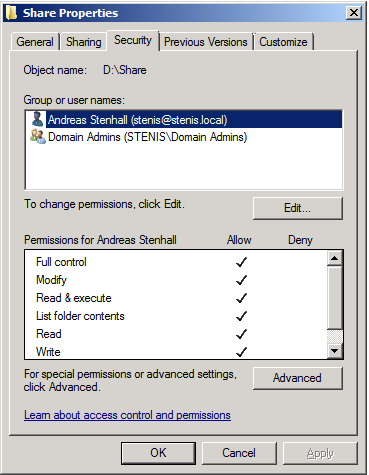
This happens because the fact that Explorer.exe cannot be elevated the normal Windows Explorer does not see that the user account should be able to access that folder. It is easy to verify as you can actually run Explorer.EXE elevated by changing the registry setting “RunAs” to “_RunAs” in HKEY_CLASSES_ROOT\AppID\{CDCBCFCA-3CDC-436f-A4E2-0E02075250C2}. Thanks goes to Andre Ziegler for this finding.
So what does this tell us? It is a somewhat strange problem but still by design. The fact is that this “problem” is not applicable to the folder and file access as described in this blog but also for AppLocker rules for instance, as many domain administrators must choose “Run as administrator” to be able to run software which they think they should be able to run without this little procedure.
Windows 7 chat transcript now up
This afternoon I held a chat about Windows 7 hosted by the Swedish MSN website. The chat was in Swedish and I have now put the transcript up for everyone to enjoy at my Swedish Windows site.
Download Internet Explorer 9 beta now
So the beta release of Internet Explorer 9 has been released for public download. I’ve only been using it for a very short period of time but I can really notice the improvements in performance. Download now from
http://windows.microsoft.com/sv-SE/internet-explorer/download/ie-9/worldwide
EDIT: Woohoo, finally a download manager within Internet Explorer. And that also means that the downloads are downloaded directly to the destination folder instead of passing through the Temporary Internet Files cache.
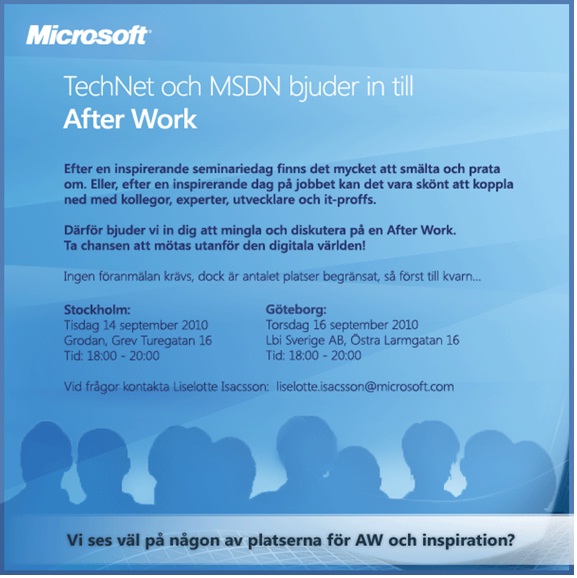
TechNet arranges after work in Stockholm
Join me and other colleagues, friends and experts for After work at Grodan, Grev Turegatan in Stockholm on Tuesday 14th.
Beta testing service packs for Windows can be scary stuff
When the SP1 beta for Windows 7 and Windows Server 2008 R2 was released a couple of months ago I pushed it in onto my Windows 7 machines without blinking. I was also about to install it (using the Windows Update script) on my Windows Server 2008 R2 Hyper-V server but thought twice as I cannot live without my virtual machines and I use many of them in my daily work.
Anyway I was kind of suprised the other day when I rebooted the Hyper-V server only to learn that the service pack was installing. Aaargghhh! I do not blame Microsoft, I blame my own stupidity. But hey, everything worked fine afterwards and by reading the release notes I can sleep good at night knowing there won’t be any problems when the next SP1 release comes.
Once you have installed this service pack, you will have to uninstall it prior to installing a later release of this service pack. The settings of any virtual machines will remain intact during the uninstallation and installation, but virtual machines that have RemoteFX or Dynamic Memory enabled will not appear in Hyper-V Manager while the service pack is removed. In addition, any snapshots taken when RemoteFX of Dynamic Memory was enabled will not appear in Hyper-V Manager. They will reappear and functional normally once the later release of SP1 is installed.
Lesson learned; check!