Category: Surface

How to Microsoft 365 Copilot and AI-enable your Windows devices for kamikaze style or pioneer users

Innovation happens extremely fast now and new features are being pumped out at a rapid pace. So how can you get on the frontier with your Windows devices to be able to utilize the most out of AI and Microsoft 365 Copilot and get your hands on all possible features today before they are released to the broad audience?
Typically, most customers that I work with are (by November 2025) at Windows 11 24H2, Microsoft 365 Apps for Enterprise Monthly Enterprise Channel at best and may be using Targeted release for Microsoft 365. This setup is good for the ones that follow the stream, but not so much for the people on the frontier that want to be pioneers, or even kamikazes.

To get the latest features that Microsoft write about or demos at conferences such as Ignite, you need to step up to be able to test these brand-new AI and Copilot features out yourself.

The steps to move to the frontier are five things

  1. Run a Windows Insider (Canary), Dev, or Beta build.
  2. Enable the latest features in Windows 11 (i.e., Enterprise Feature Control) and optional features.
  3. Run a Microsoft 365 Apps for Enterprise Beta or Current Channel (Preview) build.
  4. Set Targeted Release in M365 Admin Center to everyone (or alternatively select some users).
  5. Use Copilot+ PCs.

Two flavors – Kamikaze style or pioneer?

So just to be clear, these are my own definitions of being on the frontier. You can play safe or go totally coco-loco and do it kamikaze style. Most organizations have typical users and most also have super users or ambassadors. But if you want to truly stay ahead of the game, this is where kamikaze style users and pioneers come in. They are on the bleeding edge of technology and are adopting new AI and Copilot features as soon as they come out from the development teams at Microsoft.

User persona:Kamikaze stylePioneerSuper user and ambassadorsTypical user
 # of usersVery fewSelect few2-3%~97%
 DescriptionYou’re on your own! This is fully unsupported.Cutting edge but supported, safe and stable to use.Latest and greatest amongst the production releases.Production releases lagging one release typically.
Windows 11 buildInsider Dev* channelInsider Beta channelLatest release availableLatest release available -1
Enterprise Feature Control for WindowsEnabledEnabledEnabledDisabled
Microsoft 365 Apps for EnterpriseBetaCurrent channel (preview) Current channelMonthly Enterprise channel
Microsoft 365 Release PreferenceTargeted Release for Entire organizationTargeted Release for selected usersTargeted Release for selected usersTargeted Release for selected users
What to expectExpect updates to both Windows and Microsoft 365 Apps every weekUpdates often but less frequent than the kamikaze style.Updates whenever they are ready and well tested, which can be multiple times per month. This is playing safe. New features arrive once per month for Microsoft 365.

* The canary channel can be used, but note that “some features may show up in the Dev and Beta Channels first before showing up in the Canary Channel”.

Detailed steps to enable the kamikaze or pioneer scenario

1. Run a Windows Insider build

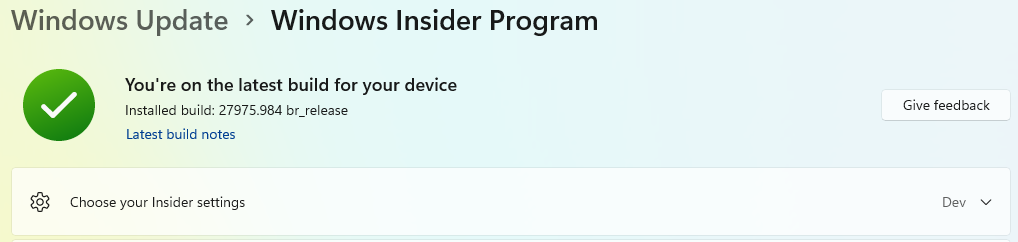
You can opt in to Windows Insider build by going to Settings > Windows Update > Windows Insider and there opting into a channel of your choice. If you want all the details about the different options, take a peek at Start previewing Windows – explore new Windows features.

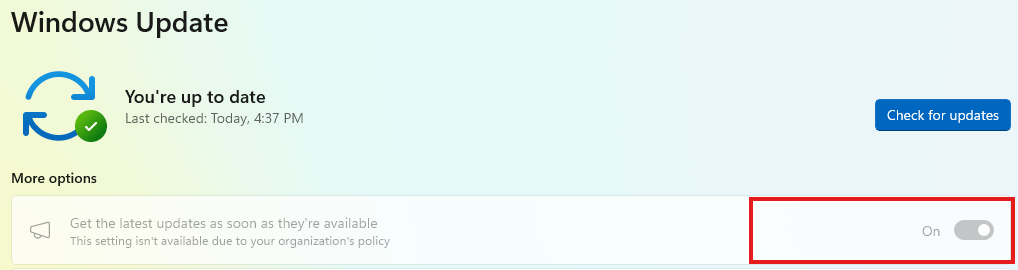
Note: Make sure to exclude the device from Autopatch (or WUfB update rings) to enable the settings, because otherwise these settings are locked down.
2. Enable Enterprise Feature Control and optional features

New major features are typically deployed as a part of each annual build of Windows, i.e., 24H2, 25H2 and so forth. However, there are features released more often than that and if you enable Enterprise Feature Control you will get the latest features regardless of if you are using the beta build och production build. More on this at Enterprise feature control in Windows 11 | Microsoft Learn.

Intune

Two settings under the Windows Update for Business category in a Settings Catalog configuration profile:

  • Allow Temporary Enterprise Feature Control is set to Allowed.
  • Allow Optional Content is set to Automatically receive optional updates (including CFRs).

GPOs

Two settings under Computer Configuration\Administrative Templates\Windows Components\Windows Update:

  • Manage updates offered from Windows Update > Enable features introduced via servicing that are off by default = Enabled.
  • Manage end user experience > Enable optional updates and set to Enabled + Automatically receive optional updates (including CFRs).
3. Run a Microsoft 365 Apps for Enterprise Insider build

If you want to learn more about the different channels in Microsoft 365 Apps for Enterprise take a peek at Compare Microsoft 365 Insider channels – Microsoft 365 Insider | Microsoft Learn.

There are multiple options to enable a new build for Microsoft 365 Apps for Enterprise, and this is the quickest one.

  1. Start a Command Prompt (cmd.exe) and type the following (for Beta channel):
reg add HKLM\Software\Policies\Microsoft\office\16.0\common\officeupdate /v updatebranch /t REG_SZ /d BetaChannel

or this (for Current Channel (Preview)):

reg add HKLM\Software\Policies\Microsoft\office\16.0\common\officeupdate /v updatebranch /t REG_SZ /d CurrentPreview

2. Finally run the update to download and change to the newest update:

"C:\Program Files\Common Files\microsoft shared\ClickToRun\officec2rclient.exe" /update user

Note 1: If you haven’t excluded the device from Autopatch (or another configuration that sets the update channel) your installation will go back to whatever channel you are currently using so make sure to fix any configuration that writes updatebranch and updatepath to HKEY_LOCAL_MACHINE\SOFTWARE\Policies\Microsoft\office\16.0\common\officeupdate. The setting updatepath will need to be removed to be able to switch the channel.

Note 2: Running the above command with the switch “user” means that even though you are configured to use a proxy for users, they will most likely be able to reach out to Microsoft and update their devices even in more regulated environments.

Note 3: You can always switch back to Current Channel or Monthly Enterprise by setting the registry value to “Current” or “MonthlyEnterprise” respectively.

4. Targeted Release in Microsoft 365 Admin Center

Set your entire organization to Targeted Release in M365 Admin Center (or alternatively select some users).

In Microsoft admin center go to Settings > Org settings > Organization profile > Release preferences. Change the setting to one of the two below, whatever fits you best.

  • Targeted release for everyone.
  • Targeted release for select users + after saving, select the users that will go into Targeted release.

Note: As some Copilot settings are only available broadly in the entire tenant, you might want to use Targeted release for everyone in a test or dev tenant if you do not do that in the production tenant.

5. Copilot+ PCs for full Copilot experience

Some AI and Copilot features in Windows depend on the existence of an NPU, which is something that Copilot+ branded devices have. Copilot+ PCs are available from multiple vendors.

Surface devices however are the most secure and optimized for modern use as Microsoft have an advantage in developing both their own firmware but also drivers. I consider this an excellent combination, the same as Apple have with their Mac devices, as Microsoft like Apple own the hardware as well as software.

If you are not sure you have an NPU in your device, you can always have a look in Task Manager, under the tab Performance. If your device has an NPU, it will be available as an “option” there.

Summary

Staying ahead of the game is more important now than ever to stay competitive and deliver services with higher expectations. Then, can you afford to stay behind the competitors? The answer to that question is probably “no”. So, let’s bring Copilot to your work force by staying ahead of the game by running the latest code in Windows and Microsoft 365 Apps!

Aka.ms links to useful resources for Windows admins

This is a collection of aka.ms links that takes you straight to great Windows admin resources, which includes Windows, Cloud PC, Azure Virtual Desktop, Surface, and of course Intune. Enjoy! Use these links to quickly browse to more or less everyday admin tasks to save time.

All links can also be found at my GitHub page where they will be updated: https://github.com/AndreasStenhall/aka.ms-Links-for-Windows-Admins

General Windows stuff

LinkDestinationDescription
aka.ms/WRHWindows Release Health dashboardInformation about known issues, fixed issues and other information relevant to each Windows release.
aka.ms/windows11updatehistoryWindows 11 Update HistoryInformation about the latest Cumulative Update for Windows 11.
aka.ms/cloudnativeendpointsCloud-native WindowsInformation about what cloud-only Windows means – i.e. Entra Joined and Intune managed.
aka.ms/CyberPAWPAW (Privileged Access Workstations)Information about PAW (Privileged Access Workstations) for administration.
aka.ms/windowsinsiderWindows Insider ProgramThis is where you find all information about becoming a Windows Insider and the Windows Insider Program.
aka.ms/wipISODownload Windows Insider build ISOsThis is where you download all the Windows Insider builds that are released as ISOs.
aka.ms/WindowsSysReqWindows 11 System RequirementsCheck out the details on Windows 11 system requirements.
aka.ms/winget-cliWinget GitHub pageThis link takes you to the main page of the Winget (Windows Package Manager) GitHub page.
aka.ms/wingetWinget GitHub repositoryThis link takes you to the winget-pkgs GitHub repository where there are thousands of applications.
aka.ms/EntraKerberosEntra KerberosThis link guides you to enable Entra Kerberos for single-sign on to on-premises resources with modern authentication (passkeys and Windows Hello for Business).
aka.ms/WHfBCloudTrustWindows Hello for Business Cloud TrustThis link takes you to the page where you will learn what Windows Hello for Business Cloud Trust is and how to enable it.

Windows Tools and Apps

LinkDestinationDescription
aka.ms/MDEanalyzerMicrosoft Defender for Endpoints Configuration Analyzer toolDirect link to download the tool that let you check the configuration of Microsoft Defender for Endpoints agent on your Windows devices. More about the tool at Microsoft Learn.
aka.ms/WindowsAdminCenterWindows Admin CenterFor Windows devices that are connected to Active Directory Domain Services, Windows Admin Center is a great tool to administer your Windows devices.
aka.ms/WACdownloadDownload Windows Admin CenterDirect link to download Windows Admin Center.
aka.ms/PowertoysWindows PowerToysDirect link to the PowerToys GitHub page.
aka.ms/GetPowertoysDownload Windows PowerToysDirect link to the PowerToys Microsoft Store page.
aka.ms/WinDbgInstall Windows Debugging ToolsWhenever you need to troubleshoot a blue screen of death, or an application crash, this is the tool.
aka.ms/LinkPhoneWindows Phone Link AppDirect link to install the app that links your Android phone or iPhone to your Windows 11 PC.

Windows 365 / Cloud PC

LinkDestinationDescription
aka.ms/WindowsInTheCloudWindows in the CloudA great starting point for Windows 365 and Cloud PC resources.
aka.ms/w365loginWindows 365 Login pageTakes you to the Windows 365 / Cloud PC login page.
aka.ms/Windows365LinkWindows 365 LinkInformation about Windows 365 Link – The hardware device for use with Windows 365 Cloud PC.
aka.ms/WindowsAppWindows AppThe Windows App is the #1 app to use to connect to Windows 365 / Cloud PC.
aka.ms/CPCsizingWindows 365 Sizing recommendationsWindows 365 / Cloud PC sizing recommendations – sizing of hardware.
aka.ms/windows365securityWindows 365 Security recommendationsWindows 365 / Cloud PC security recommendations.

Azure Virtual Desktop

LinkDestinationDescription
aka.ms/WindowsAppWindows AppThe Windows App is the #1 app to use to connect to Azure Virtual Desktop.
aka.ms/avdwhatsnewAVD What’s NewWhat’s new in Azure Virtual Desktop page.
aka.ms/avdroadmapRoadmap for AVDRoadmap items for Azure Virtual Desktop.
aka.ms/avdpricingAVD PricingAzure Virtual Desktop pricing page.
aka.ms/Fslogix_downloadDownload FSLogixFor the best profile management solution in AVD this is where you download FSLogix using the direct link.

Intune

LinkDestinationDescription
aka.ms/inIntune Admin CenterThe Intune Admin center – no further comments needed on this one.
aka.ms/intuneNewWhat’s new in IntuneAll new features and changes to Intune and device management is found here.
aka.ms/IntuneScriptsIntune ScriptsMicrosoft Intune Automation and Scripting Samples – Graph API and PowerShell examples.
aka.ms/WUfBReportsWindows Update for Business reportsThis link takes you straight to the Windows Update for Business reports, which are actually not hosted inside Intune but in Azure > Monitor > Workbooks > Windows Update for Business report.
aka.ms/EndpointAnalyticsEndpoint Analytics bladeThis link takes you directly to the Endpoint Analytics blade in Intune Admin center.
aka.ms/win32prepMicrosoft Win32 Content Prep ToolThis is where you find more information and download the Microsoft Win32 Content Prep Tool.
aka.ms/IntuneTroubleshootingTroubleshooting bladThis link takes you directly to the Troubleshooting blade in Intune Admin center.
aka.ms/dsregtoolDevice Registration Troubleshooter toolThis PowerShell script helps you troubleshoot device join (Hybrid and Cloud) and also Primary Refresh Tokens.

Surface

LinkDestinationDescription
aka.ms/surfacerecoverySurface Recovery Image download pageOn this page you can download the recovery images for all Surface devices.
aka.ms/SurfaceDriversSurface Drivers and Firmware downloadsAll information you need on drivers and firmware for Surface devices.
aka.ms/SurfaceBatteryPerformanceSurface Battery PerformanceOn this page you can find the estimated battery performance for all Surface devices.

User Links

LinkDestinationDescription
aka.ms/mysecurityinfoMy Security InfoThe place where the end user can see and manage their multi factor authentication methods.

All links can also be found at my GitHub page where they will be updated: https://github.com/AndreasStenhall/aka.ms-Links-for-Windows-Admins

Field report: ~5 years with an ARM based Windows 10/11 Surface device

It is now almost 5 years since I got my current device, the ARM based Surface Pro X SQ1 device. I’ve been using it as my primary work device since then, although much work has also been conducted on other devices for the customers I work with. Still, I’ve used my Surface Pro X almost every day for soon 5 years.

This report is meant to help shed some light on the ARM platform, and aid in hopefully clearing out some questions marks for users or organizations looking to purchase ARM based devices, for instance any of the new Surface Pro or Surface Laptops devices with Snapdragon X Plus or Snapdragon X Elite processors released in 2024.

History – Windows 10 and ARM

When I got my Surface Pro X device back in the days, Windows 11 was not available, so I started out with Windows 10 on ARM. Back then, there were to be honest quite a few things that did not work, which hindered me in performing my work.

The biggest problem was that x64 applications did not run at all! That included the 64-bit Microsoft 365 Apps for Enterprise as well as 64-bit compiled PowerShell modules which are used to manage Microsoft 365 and Azure resources. Thankfully, these obstacles are since Windows 11 was released a memory of the past!

Windows 11 bring ARM devices to a useable level

As soon as I upgraded to Windows 11 on my Surface Pro X it was a new world opening – and the obstacles I previously had was long gone. With Windows 11, there is x64 emulation meaning basically any application will run without problems, including the PowerShell modules I previously had problems running and also running Microsoft 365 Apps for Enterprise on 64-bit.

Since the release of Windows 11, more and more features have been enabled over time, bringing Windows 11 on ARM to an almost feature-complete Windows if you compare it to the Windows 11 64-bit edition that is used on some 99%+ devices globally.

Limitations of Windows 11 on ARM

So, while there are no blockers for me to do my daily work, there are some limitations that you might want to be aware of.

Windows feature / componentLimitation / problemComments from the field
Drivers and hardware Drivers for both hardware as well as software needs to have a driver compiled for the ARM64 platform. This might include printers, VPN software, antimalware applications and such.The only application I personally have encountered problems with is the Camtasia screen recorder application. There are also quite a few vendors of third party antimalware solutions that do not (currently) support the ARM platform. Note: If you are invested on the Microsoft Defender platform, you are all good!
For some more information on compatibility with antimalware and VPN solutions, scroll down to “A growing Arm ecosystem…” in this blog post Available today: Windows Dev Kit 2023 aka Project Volterra – Windows Developer Blog
For hardware, the printers I have used have had ARM64 drivers (although they are not listed on the mopria.org site).
Hyper-V VMsYou can create and run Hyper-V virtual machines on Windows on ARM. However, you cannot run the x64 versions of Windows as guest OS in the VMs and are limited to Windows on ARM.This is a rather small limitation for me, and typical end-users will not even know what Hyper-V is. Virtualization based security features in Windows is fully supported.
Games, Windows Fax and Scan and moreMicrosoft has an official list of what could pose problems on ARM, see Windows Arm-based PCs FAQ – Microsoft SupportExcept the limitations I mention above, I have not seen any of the other problem that Microsoft describe in the article over the almost five years that I have used my ARM device.

ARM platform is expanding

Over the last years we have seen more and more ARM compiled versions appearing, for instance of Microsoft Teams, Company Portal app and Adobe Photoshop.

Also, the number of devices based on ARM have increased over the years and most major computer manufacturers have ARM devices to choose from. With the introduction of Copilot+ devices in 2024 the ARM platform is expanding even more.

One of the biggest changes with Windows 11 was the introduction of x64 emulation for applications. This has been improved even further in Windows 11 24H2 with significant improvements to performance with the new Prism emulator.

Management, ISO files, installation and recovery of the devices

One the biggest limitations is the lack of official installation media (ISOs) for Windows on ARM. That means, every time I need to wipe my Surface Pro X I will have to download the 10GB recovery file, put it on a USB stick and recover.

After that I will be on Windows 10 1803 which means to get to Windows 11 24H2 I will have to run a number of Windows Update passes, with hours and hours to go until I am on the latest Windows release. This is the area where Microsoft can do a lot better! There are ISOs for Insider builds however.

When it comes to management of ARM based devices, there are some things to take into consideration, for instance regarding application deployment. Apart from that management of ARM devices are more or less the same as any Windows device, at least if you are managing them using Intune. If you are using Configuration Manager, have a look at this article. My strongest recommendation is though, to use Intune to manage your ARM devices!

If you want to have a great summary of what management and deployment of ARM (Surface devices) mean, read Deploy, manage, and service ARM-based Surface devices.

Devices that (typically) does not make a sound

One of the biggest advantages which I have not mentioned yet is that the device is completely silent, and it has not given away one slightest sound over these three years. Fan-less, yet still enough powerful to do information work and being very mobile with the built in support for 4G/LTE (and newer devices which support 5G).

Although the “no noise” thing is true for my Surface Pro X (SQ1) I recommend you look this up for the particular model you potentially will be purchasing as some ARM based devices do have a fan.

ARM based devices generally use little energy and thereby produce little heat and with that often do not need any fans that generate noise.

Summary and recommendation

The ARM platform is definitely mature enough to put in hands of end-users and have many advantages over traditional processor platforms. All the security features of Windows are there (and also Defender for Endpoints) and basically all applications work, especially if you are using the Microsoft 365 suite.

Will I choose an ARM based device again when the Surface Pro X support come to an end and the new Copilot+ devices are available with 5G? The answer to that question is “yes, absolutely!”. Do I recommend end-users or organizations to try or evaluate ARM based devices? Yes, you should start today! As always, you need to test and make sure everything the end-users needs is working, before you do any broader deployments of ARM based devices.

To summarize, an ARM based device is user friendly with typically no noise and long battery times due to low energy consumption, and can also be kept as secure as any other device.

Field report: 3 years with an ARM based Windows 10 / Windows 11 device

NOTE: This blog post has been replaced as of September 2024 by a new version based on almost 5 years with an ARM based Surface device.

It is now exactly 3 years since I got my current device, the ARM based Surface Pro X SQ1 device. I’ve been using it as my primary work device since then, although much work has also been conducted on other devices for the customers I work with. Still, I’ve used my Surface Pro X almost every day.

This report is meant to help shed some light on the ARM platform, and aid in hopefully clearing out some questions marks for users or organizations looking to purchase for instance the Surface Pro 9 which comes both with an Intel processor as well as a Microsoft SQ3 (ARM) processor.

Windows 10 and ARM

When I got my Surface Pro X device Windows 11 was not available, so I started out with Windows 10 on ARM. Back then, there were to be honest quite a few things that did not work, which hindered me in performing my work.

The biggest problem was that x64 applications did not run at all! That included the 64-bit Microsoft 365 Apps for Enterprise as well as 64-bi compiled PowerShell modules which is used to manage Microsoft 365 and Azure resources. Thankfully, these obstacles are now a memory of the past!

Windows 11 bring ARM devices to a useable level

As soon as I upgraded to Windows 11 on my Surface Pro X it was a new world opening – and the obstacles I previously had was long gone. With Windows 11, there is x64 emulation meaning basically any application will run without problems, including the PowerShell modules I previously had problems running and also running Microsoft 365 Apps for Enterprise on 64-bit.

Since the release of Windows 11, more and more features have been enabled over time, bringing Windows 11 on ARM to an almost feature-complete Windows if you compare it to Windows 11 the 64-bit edition that is used on some 99%+ devices globally.

Limitations of Windows 11 on ARM

So, while there are no blockers for me to do my daily work, there are some limitations that you might want to be aware of.

Windows feature / componentLimitation / problemComments from the field
Drivers (hardware and software)Drivers for both hardware as well as software needs to have a driver compiled for the ARM64 platform. This might include printers, VPN software, antimalware applications and such.The only application I have encountered problems with is Camtasia screen recorder application. However, there used to be some manual work needed to get Adobe Photoshop installed, manually uninstalling Visual C++ runtimes, and then installing the ARM based Visual C++ runtimes. For hardware, the printers I have used have had ARM64 drivers.
Update March 14, 2023: For some more information on compatibility with antimalware and VPN solutions, scroll down to “A growing Arm ecosystem…” in this blog post Available today: Windows Dev Kit 2023 aka Project Volterra – Windows Developer Blog
Microsoft Defender Application GuardThis virtualization based feature of Windows is not available on Windows on ARM.This is too bad as I really like having the Application Guard feature protecting Office documents that come from the internet zone.
Update March 14, 2023: Since the blog post was written, David Weston announced on Twitter that Application Guard for ARM is here (unclear though what build you need to be on).
Hyper-V VMsYou can create and run Hyper-V virtual machines on Windows on ARM. However, you cannot run the x64 versions of Windows as guest OS in the VMs and are limited to Windows on ARM.This is a limitation for me – but although the Surface Pro X can run not only Hyper-V but also Android apps via Android Subsystem, the performance of the devices is just not fitted for running all these performance-demanding virtualization stuff.
Games, Windows Fax and Scan and moreMicrosoft has an official list of what could pose problems on ARM, see Windows Arm-based PCs FAQ – Microsoft SupportExcept the limitations I mention above, I have not seen any of the other problem that Microsoft describe in the article over the three years that I have used my ARM device.

ARM platform is expanding

Over the last year or so we have seen ARM compiled versions of Microsoft Teams and then also Company Portal app appearing. There are probably more examples, but these are what comes to mind.

Also, the number of devices based on ARM have increased over the years and most major computer manufacturers have ARM devices to choose from.

Management, ISO files, installation and recovery of the devices

One the biggest limitations is the lack of installation media (ISOs) for Windows on ARM. That means, every time I need to wipe my Surface Pro X I will have to download the 10GB recovery file, put in on a USB stick and recover.

After that I will be on Windows 10 1803 which means to get to Windows 11 22H2 I will have to run a number of Windows Update passes, with hours and hours to go until I am on the latest Windows release. This is the area where Microsoft can do a lot better! There are ISOs for Insider builds however.

When it comes to management of ARM based devices, there are some things to take into consideration, for instance regarding application deployment. Apart from that management of ARM devices are more or less the same as any Windows device, at least if you are managing them using Intune. If you are using Configuration Manager, have a look at this article.

If you want to have a great summary of what management and deployment of ARM (Surface devices) mean, read Deploy, manage, and service ARM-based Surface devices.

Does not make a sound

One of the biggest advantages which I have not mentioned yet is that the device is completely silent, and it has not given away one slightest sound over these three years. Fan-less, yet still enough powerful to do information work and being very mobile with the built in support for 4G/LTE.

Although the “no noise” thing is true for my Surface Pro X (SQ1) I recommend you look this up for the particular model you potentially will be purchasing.

ARM based devices generally use little energy and thereby produce little heat and with that often do not need any fans that generate noise.

Summary and recommendation

As I see it, the ARM platform is mature enough to put in hands of end-users. The security features of Windows are there (except for Application Guard which very few use) and basically all applications work, especially if you are using the Microsoft 365 suite.

Would/will I choose an ARM based device when the Surface Pro X support come to an end? The answer to that question is “yes, absolutely!”. Do I recommend end-users or organizations to try or evaluate ARM based devices? Yes, you should start today! As always, you need to test and make sure everything the end-users needs is working, before you do any broader deployments of ARM based devices.

Fixing OneDrive and Office 365 ProPlus problems on Surface Pro X when MDATP security baselines are applied

I’ve got a myself s Surface Pro X, based on Windows 10 ARM-edition, and thought I’d share the solution to a problem that I suppose more will encounter. After configuring my Surface Pro X for Azure AD join and Intune I soon hit two major problems.

Problem description

  1. OneDrive not starting at all, leaving a crash reference in Event Viewer with reference to PayloadRestrictions.dll.
  2. The Office 365 ProPlus applications works until the device is restarted, then they refuse to start. To get them going again I had to do a repair and then they started working again. At least until the next restart.

Troubleshooting and finding root cause

The Event Viewer Application log show that OneDrive crashed with reference to PayloadRestrictions.dll whenever trying to start it.

Faulting application name: OneDrive.exe, version: 19.232.1124.5, time stamp: 0xc2fada7d
Faulting module name: PayloadRestrictions.dll, version: 10.0.18362.1, time stamp: 0x77901827
Exception code: 0xc0000409
Fault offset: 0x0006e6bd
Faulting process id: 0x2ef4
Faulting application start time: 0x01d5e8bd4968fce4
Faulting application path: C:\Users\<username>\AppData\Local\Microsoft\OneDrive\OneDrive.exe
Faulting module path: C:\WINDOWS\SYSTEM32\PayloadRestrictions.dll

PayloadRestrictions.dll has been around for quite some time as a component of EMET (Enhanced Mitigation Experience Toolkit) which is nowadays integrated as the security feature Exploit Guard in Windows 10. With that as a first clue and some interaction with Robin Engström the troubleshooting process continued!

Knowing that Exploit Guard is in play and mitigations seemed to be in play, looking at the Event Viewer log Security-Mitigation > Operational log showed that OneDrive was blocked due to ROP exploit indications:

Process 'C:\Users\<username>\AppData\Local\Microsoft\OneDrive\OneDrive.exe' (PID 12020) was blocked from calling the API 'LdrLoadDll' due to return-oriented programming (ROP) exploit indications.

So then the hunt for where the configuration was coming from started and as the device is of course Intune enrolled that’s were I started looking!

It rather quickly turned out to be caused by a Microsoft Defender ATP security baseline in Intune that was applied to my user account.

To be more explicit the Exploit Guard settings clearly state that OneDrive.exe is protected for a number of exploits, including ROP!

Resolution

The solution to both problems described in the Problems section is to adjust the Exploit Guard XML file to exclude OneDrive.exe and also the other Office applications to make the Office applications work as expected.