The solution to 0xC004F013: Remove KB941649

Written by Andreas Stenhall on Thursday, 27 of December , 2007 at 5:38 pm

Since the first build of Service Pack 1 beta was released I have had major problems installing it on our Vista Enterprise corporate image, with hotfixes, security update and drivers integrated. The problem has been that we have to install Service Pack 1 two times, the first time it will always fail with the error code 0xC004F013 but the second time SP1 would always install without any indication of error. Very annoying as SP1 takes some time to install and as we will be rolling out Vista in the organization it is totally unacceptable to have to install SP1 twice. And who knows what other side effects there might be?

Microsoft and I did some research and I first thought that a patch that is only available for order from Microsoft Support was the cause of the problem. After rebuilding the image without that patch the SP1 installation would still fail with 0xC004F013. Today, back at work after Christmas, I managed to figure out by reading the log files produced from package manager (pkmgr.exe) that KB941946 is the hotfix that causes this SP1 installation problem. And to be accurate it’s version 2 of the patch.

It would be very interesting to learn if anyone else who has a Vista image with patch KB941649-V2 integrated get this error 0xC004F0143 as well when installing Service Pack 1. The problem itself does not lie in SP1 and that is why it has been important to actually and finally get to the bottom of this!
Comments (1)

Category: Error, Installation, Vista Service Pack 1, Windows Vista

Application compatibility in Windows Vista

Written by Andreas Stenhall on Wednesday, 26 of December , 2007 at 4:56 pm

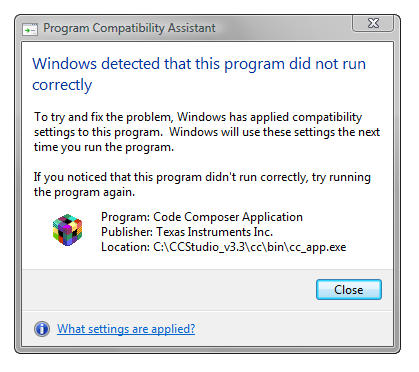
Windows Vista contains a nice utility called Program Compatibility Assistant which tracks the applications which might have problems with running in Vista. When you start an application which is detected to have problems with Vista you will be presented with a box like the one below, and the necessary compatiblity settings are automatically applied. In some cases the Program Compatibility Assistant solution to a compatibility problem is to set it to run as in Windows XP with Service Pack 2. What the Program Compatibility Assistant do in my example case is to determine that an application need to start with elevated privileges when using User Account Control. Of course this is a problem when the user running the application is just a standard user as he or she cannot start and use the application.

Compatibility Assistant

Regardless of what the Program Compatibility Assistant do the compatibility settings are stored per user and application in the registry. Have a look at this registry key to manually remove or just to have a look at what compatibility settings have been applied on your computer: HKEY_CURRENT_USER\Software\Microsoft\Windows NT\CurrentVersion\AppCompatFlags\Layers.

The solution to resolve the problem with running certain applications elevated can in many cases is resolved by turning off User Account Control as a last way out, if you have not already disabled it.

Leave a comment

Category: Compatibility, Windows Vista

Deployment bug found in Vista RTM

Written by Andreas Stenhall on Sunday, 16 of December , 2007 at 7:47 pm

Long time no see! I have lots of things to blog about, I just haven’t had the time to do so lately. Last week though I learnt  about a tricky NetBIOS computer naming bug when deploying Vista using Windows Deployment Services (WDS). As you might know  the NetBIOS computer names cannot be longer than 15 characters and when you in Windows Vista (and all previously released Windows versions as well) change the computer name to a name with more than 15 characters you will get a warning message 
that will look something like the screenshot attached to this post.

Computer name change

When using Windows Deployment Services with the new option “Name and approve” the client before pushing out the image to the client, you can as you might have figured name the computer object in Active Directory and then fully automate the  installation process. In the unattended answer file in the computer name section for deploying Vista we have entered %MACHINENAME% to make sure that the computer name is not randomly generated with a name like LH-XY45YHGKL and to make sure 
that we will not get any questions to answer when deploying automatically.

We have a computer naming standard which obviously sometimes makes the computer name more than 15 characters. The bug is when you name a computer longer than 15 characters during Name and approve in the WDS. Then the unattended installation will fail at the specialize pass, without any particular error message, probably because it wants to show the same error message dialogue as when we are in the GUI version of Vista.

Leave a comment

Category: Bug, Deployment, Error, Installation, Windows Vista

About

The Experience blog is not like the regular blog! I will present my good and bad experiences with Windows XP, Vista and Server 2008 from a corporate as well as a power user perspective. >>>