Beyond Passwords: Deploying Phishing-Resistant Authentication with Microsoft Technologies
Passwords have been the foundation of authentication for decades, but they are no longer fit for purpose. In today’s threat landscape, passwords are one of the weakest links in security, constantly targeted by phishing, credential theft, and brute-force attacks.
The goal is clear: move your organization to phishing-resistant authentication and eliminate passwords entirely.
This post walks through the why, what, and how of deploying passwordless authentication using Microsoft technologies based on real-world experience and implementation guidance.
The North Star: A Passwordless Organization
The ultimate goal is an organization where all users authenticate using phishing-resistant methods instead of passwords. This means:
- New users never receive a traditional password.
- Existing users are migrated to passwordless authentication.
- Passwords are effectively neutralized (e.g., replaced with random 255-characters that no one knows about).
What Is Phishing-Resistant Authentication?
Phishing-resistant methods protect against credential theft because they:
- Are tied to a device or hardware (unless we talk about synced passkeys).
- Use public/private key cryptography.
- Cannot be replayed by an attacker.
Key Microsoft Authentication Options
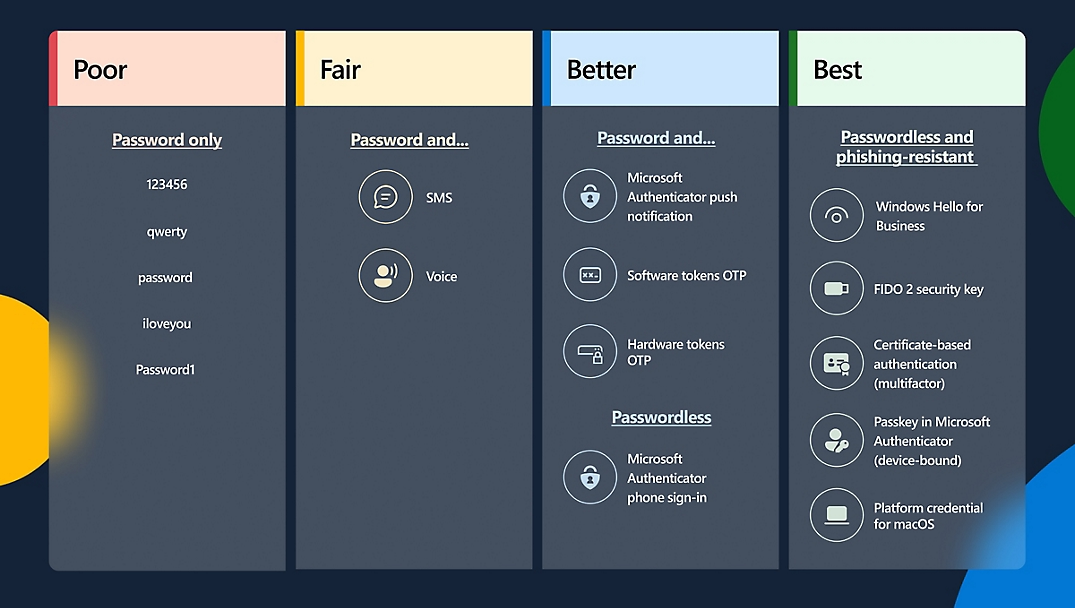
Among these, passkeys are quickly becoming the preferred approach due to usability and ecosystem support.
Step 1: Understand Your Current State
Start by identifying how your users are authenticating today, before you start deploying options.
- Where passwords are used?
- Which users rely on them?
- Adoption of Windows Hello for Business?
Use Entra sign-in logs and KQL queries to build visibility into this, as well as inventorying which users are using Windows Hello for Business and who are not. This way you can target information to the users in need.
KQL queries
The KQL queries below are used to list users who use passwords to login to Windows and then also Microsoft 365 Services.
Note: A pre-req for these is that you have configured your Entra sign-in logs to be sent to a Log Analytics workspace. This is configured in Entra admin center (https://entra.microsoft.com) under Monitoring & health > Diagnostic settings.
KQL query to list all users that sign-in to Windows using a password
SigninLogs
| where Resource == "Microsoft.aadiam" and AppDisplayName == "Windows Sign In"
| extend authenticationMethod_ = tostring(parse_json(AuthenticationDetails)[0].authenticationMethod)
| extend succeeded_ = tostring(parse_json(AuthenticationDetails)[0].succeeded)
| where authenticationMethod_== "Password" and succeeded_ == "true"
| extend authenticationStepDateTime_ = todatetime(tostring(parse_json(AuthenticationDetails)[0].authenticationStepDateTime))
| extend displayName_ = tostring(DeviceDetail.displayName)
| extend trustType_ = tostring(DeviceDetail.trustType)
| extend deviceId_ = tostring(DeviceDetail.deviceId)
| summarize Count = count() by displayName_, IdentityKQL query to list all users that sign-in to Microsoft 365 services using a password
This can for instance be users that are using a password + number matching in Authenticator.
SigninLogs
| where Resource == "Microsoft.aadiam" and AppDisplayName != "Windows Sign In"
| extend authenticationMethod_ = tostring(parse_json(AuthenticationDetails)[0].authenticationMethod)
| extend succeeded_ = tostring(parse_json(AuthenticationDetails)[0].succeeded)
| where authenticationMethod_== "Password" and succeeded_ == "true"
| extend authenticationStepDateTime_ = todatetime(tostring(parse_json(AuthenticationDetails)[0].authenticationStepDateTime))
| extend displayName_ = tostring(DeviceDetail.displayName)
| extend trustType_ = tostring(DeviceDetail.trustType)
| extend deviceId_ = tostring(DeviceDetail.deviceId)
| summarize Count = count() by displayName_, IdentityThanks to Michael Hildebrand for inspiring the above.
Windows Hello for Business “report” using Intune Remediations
Now that you know what users are using passwords to sign-in to Microsoft 365 and Windows, match this what their current configuration is in terms of Windows Hello for Business. For that I would like to share MrWyss remediation that will list enrolled methods for Windows Hello for Business (Face recognition, fingerprint or PIN), and at the same time also get report on what authentication method the user last used to sign-in to Windows. This is a very quick way to get great details that you can work with to target information to certain users. The remediation scripts can be found Intune-Remediation-Scripts/WH4B at main · MrWyss-MSFT/Intune-Remediation-Scripts · GitHub.

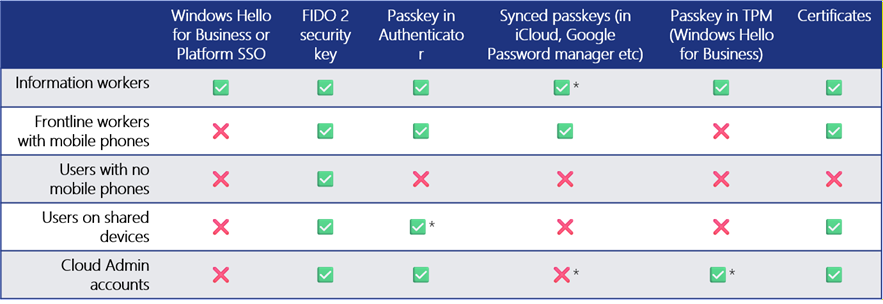
Step 2: Choosing the Right Method per User Persona
Different users require different approaches. A one-size-fits-all model does not work. You have to do your homework here.
Step 3: Configure Technology
Enable Windows Hello for Business (GPO or Intune Settings Catalog) – – Windows Hello for Business policy settings | Microsoft Learn
Configure authentication methods in Entra (https://entra.microsoft.com) > Authentication methods. Make sure to enable Passkey (FIDO2) in some shape for ALL your users.
Step 4: Enable Entra Kerberos for SSO to On-premises Resources
For hybrid environments you must enable Entra Kerberos for on-prem SSO because this is what gives you access to on-premises resources such as file shares, printer and applications when you sign-in to Windows using Windows Hello or FIDO2 security keys. This is where you setup the Entra Kerberos connection between Entra and on-premises Active Directory: Passwordless security key sign-in to on-premises resources – Microsoft Entra ID | Microsoft Learn.
After you’ve enabled Entra Kerberos you will be able to log in using FIDO2 security keys and access on-premises resources instantly. When you are using Windows Hello for Business you must enable the setting “Use Cloud Trust for Windows Hello for Business” to ensure single sign-on to file shares, printers and applications on-premises. For details on settings: Windows Hello for Business cloud Kerberos trust deployment guide | Microsoft Learn.
Deployment Phase – Focus on People and Processes
As you can see, technology alone isn’t the challenge as technology is configured rather easily. The hard part is adoption among the users. Other key areas that come into play are:
- Onboarding processes – you might have to talk to HR.
- Process for revoking credentials when devices are lost – I hope you already have this in place.
- User training – Training and information is necessary for the end users, as well as explaining why you are moving away from passwords.
- Service desk readiness – Prepare your service desk or first line support, because they will be the first ones the users contact.
Migrating Existing Users
Target users based on data from Step 1 when you did the inventory. Communicate clearly with the users why and how. Track adoption trends and follow up. Patience is critical – this is a journey.
Common Scenarios for Existing Users and What to Do
Scenario 1: Users logging in with passwords (Windows/macOS)
Replace with: Windows Hello for Business, FIDO2 security keys primarily.
Scenario 2: Users using MFA (password + Authenticator)
Replace with: Passkeys. The easiest way to do this is for users to go to Authenticator app > Click their Entra work account and choose Create passkey.
Onboard New Users Without Passwords
When you get new employees into your organization, this is the concept to go:
- Set a random 255-character password for the user, and never ever give them a traditional password.
- Use Temporary Access Pass (TAP) for onboarding as this is a temporary password or could even be a one-time password. This ensures passwords are never introduced in the first place.
User Entry Point of Setting up Stronger Authentication Methods
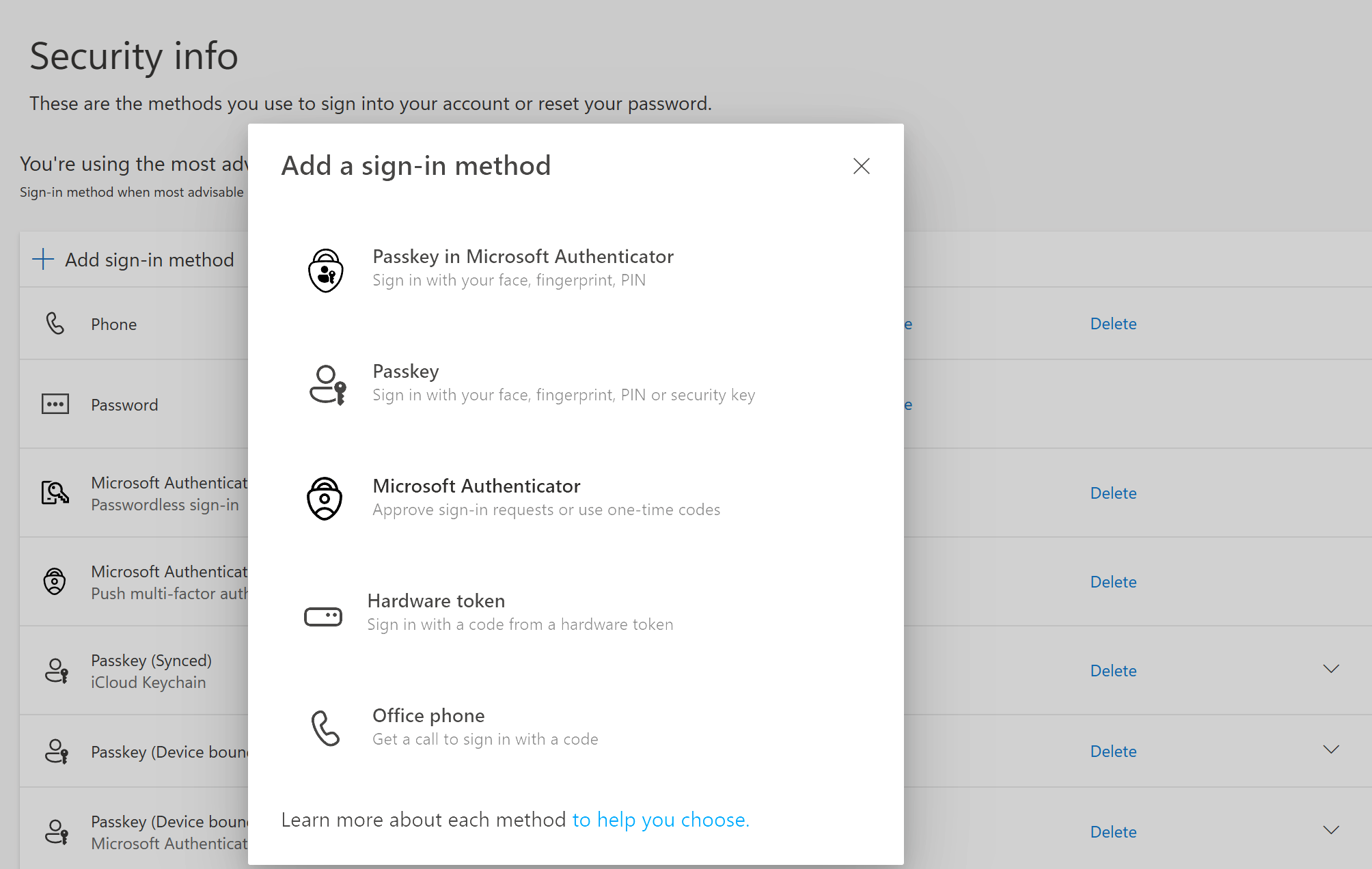
As previously mentioned, the user can enable passkeys from within Authenticator app. The user can also be directed to aka.ms/mysecurity or aka.ms/mysecurityinfo and set up authentication methods from there, provided that you have Enabled them in Entra > Authentication methods.
Key Configuration Enhancements
To reinforce passwordless strategy and consider these great implementations that will move forward into using phishing-resistant methods:
- Enable Passwordless Experience in Windows 11 – Configure Windows Passwordless Experience With Intune | Microsoft Learn
- Enable Web sign-in (only for Entra joined, not Hybrid) – Use Web Sign-In To Enable Passwordless Sign-In In Windows | Microsoft Learn
- Use Authentication Strengths in Conditional Access to enforce phishing-resistant methods – Overview of Conditional Access Authentication Strengths – Microsoft Entra ID | Microsoft Learn
- Use registration campaigns to push adoption – Run a registration campaign to set up passkey or Microsoft Authenticator – Microsoft Entra ID | Microsoft Learn.
- Scramble the users passwords to 255 characters – as you cannot remove passwords from Active Directory or Entra, all you can do is to scramble the passwords so that the user do not know about it – Remove Passwords from Microsoft Entra ID – Microsoft Entra ID | Microsoft Learn
These controls ensure users cannot fall back to weaker methods.
Key Takeaways
- Eliminating passwords is a business transformation, not just a technical change.
- Focus on admin accounts first, they are the highest risk.
- Ensure all users authenticate to Windows using phishing-resistant methods.
- Once foundational controls are in place, adoption will accelerate.
Final Thoughts
Passwords are not going away overnight, but they are becoming irrelevant. By adopting phishing-resistant authentication, you:
- Remove passwords as they are the primary attack vector used today – and move to phishing-resistant methods.
- Improve user experience by getting rid of passwords.
- Have the possibility to also reduce costs in reduced password management.
The question is no longer whether you should go passwordless – it’s how fast you can get there.

Recommendations for moving away from deprecated enterprise features in Windows 10 and 11
Enable the passwordless experience in Windows 11 to enhance identity security
Passwordless + Autopilot + Preview builds in Update rings ≠ True
About Author

Andreas Stenhall
I'm Andreas Stenhall and my work passion is the Windows client in combination with Microsoft 365 security and management services. I do consulting, I produce and teach my own courses, I lecture and I present and my formal work title is prinicipal workplace advisor and architect at Coligo in Stockholm, Sweden. I'm also proud to be an Microsoft MVP since 2009. I have presented at BUILD, TechEd in the US and Europe and regional TechDays. Follow me on twitter @AndreasStenhall.
You must be logged in to post a comment.