TechDays is a two-day Swedish conference hosted yearly by Microsoft and partners. I will be there to speak about AppLocker in Windows 7. I will specifically talk about what makes it so great but I will focus on how to implement it and what to think about while doing so. There will be a bunch of other very interesting sessions on the latest Microsoft products so I hope I’ll see you at TechDays in March!
Author: Andreas Stenhall
UAC off = IE protected mode off
Just wanted to post a quick reminder that if you turn off UAC (User Account Control) in Windows Vista or Windows 7 you also turn off “Protected mode” in Internet Explorer. Turning off UAC is not recommended but if you do, make sure that you run with a standard user account.
Beware of saved credentials
Saved credentials can be a good thing, but many times they are not. The last couple of weeks I have become involved in a couple of cases where saved credentials in all from Windows XP to Windows 7 have been the cause of strange problems, primarily accessing file servers.
The problems have been with accessing mapped network drives or browsing file servers, with various error messages. Even though Windows 7 sports the “new” credential manager, this feature has been there even in Windows XP. This means that you can add credentials for servers so that you won’t have to provide them when accessing resources on the network.
The cause of the problem is for instance when a user change his or her password and the saved credential become obsolete, causing the user to have serious problems authenticating to the network resources.
The settings for these saved credentials are as follows:
Windows XP: Start “User Accounts” control panel, choose an account and then go to “Manage my network passwords”.
Windows Vista: Start “User Accounts” control panel, choose an account and then go to “Manage your network passwords”.
Windows 7: Search for and start the “Credential Manager” control panel.”
Solve the problems accessing network resources by deleting the saved credentials once and for all!
Move from Windows 7 RC to RTM today!
If you or someone in your organization still are running the release candidate of Windows 7 now is the time to go to RTM. In one month from now all Windows 7 RC machines will start rebooting themselves every second hour. Remember that in-place upgrades from Windows 7 RC to RTM are not supported nor recommended.
HOW TO: List performance issues with your Vista or Windows 7 machine
In Windows Vista and Windows 7 there is one feature that many does not know about that lists performance issues with your system. It can show you for instance if a driver of any kind is making “sleep mode” take longer than expected or software the make your computer start or turn off slow.
You find this more or less hidden feature by starting “Performance Information and Tools”. Then click “Advanced tools” in the left menu and then look under the first section “Performance issues” for possible causes of system performance issue.
Let your users upgrade to Windows 7 automatically
Mikael Nyström, MVP on Windows Setup and Deployment, has written a rather short but very useful guide on how to easily deploy Windows 7 to end users. Read his blog post!
HOW TO: Solve printing problems via RDP #2
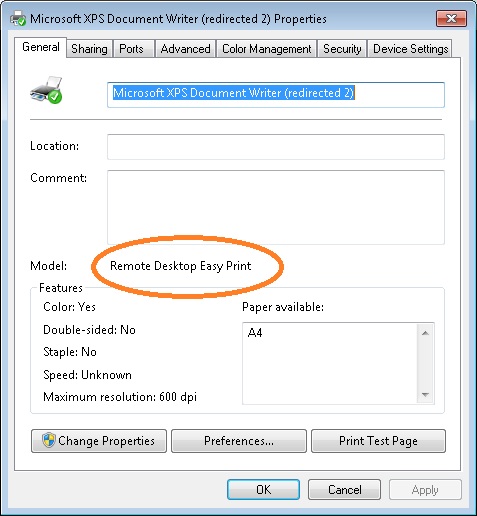
Just a quick follow-up on the post on solving printing problems via RDP as I for some not so obvious reason totally forgot about it in the last post. It is very easy to find out which driver a redirected printer actually uses by choosing Properties on the printer and noting what it says under “Model”.
It will state either “Remote Desktop Easy Print” (Terminal Services Easy Print) if you are indeed using the Easy Print printer driver or it will show the real driver name for the printer if it has been mapped with the real driver.
HOW TO: Solve printing problems via RDP #1
RDS Easy Print (previously TS Easy Print) in all its glory but sometimes you may look at problems printing when using the RDS Easy Print driver. Starting with Windows Vista and specifically RDP 6.0 it is possible to connect to remote machines via RDP and automatically get the locally installed printers available in the RDP/TS/RDS session. Previously one had to match the printers drivers with being the exact same on both the local and remote machine. This is done with something called a RDS/TS Easy Print printer driver.
In a few cases I have seen that printing does not work as expected when using the RDS Easy Print printer driver making the printer for example pause, print, pause, print and so on when printing a multiple page document.
The sweet thing here is that with Windows 7 and Windows Server 2008 R2 comes a new group policy setting that allows us to first try to match the local print driver with a remote (the old fashioned way) before using the RDS Easy Print driver. The setting to activate this is named Use Remote Desktop Easy Print printer driver first and is found in Computer configuration – Administrative templates – Windows Components – Remote Desktop Services – Remote Desktop Session Host – Printer Redirection. Set it to disabled to make use of the “real” print driver first.
Prepare for Office 2010 today with Office 2010 Assessment Tool
As always it is good to be prepared and plan ahead and Office 2010 is “soon” to be released so why not prepare for it now instead of later? With Office 2010 Assessment tool you can inventory one or many computers in one go and get a good view on for example which addons are in use, which applications interact with Office and potential problems when upgrading the current version to Office 2010. The tool can be found at Microsoft Download Center.
The only true “God mode” in Windows 7 is…
… that it is there by default in Windows 7 (in the start menu)! Lately there has been spreading what is called a “God mode” trick that simply what it does is to create a shortcut to all settings available for each control panel item. The trick is a nice one but to be honest I see very little use for this trick as all settings that are listed on this page is searchable in the Start menu.
A much better trick in my opinion would be to use the search box in the start menu and always search for a keyword related to what you want to do. There are shortcuts in Windows 7 to take if you just learn to use the start menu search. Let’s take an example on which I often ask students when I teach Windows 7 classes how they would process on how to install/uninstall Windows components and the answer is “I would go to Add/remove programs (Programs and features) and then click Windows components (Turn Windows features on or off)”.
Well, in Windows 7 you don’t have to do this, you can just go ahead and type “features” in the start menu search box and it will list the option “Turn Windows features on or off” and you can save mouse clicks and time!
If you still want “God mode”, create a folder and name it “GodMode.{ED7BA470-8E54-465E-825C-99712043E01C}” and you will get the list of all options available for each control panel item.