Case of the mysterious issues with UAC in Windows 7 and Windows Server 2008 R2

At the TechNet/MSDN after work I attended last week I got an interesting question on why a user (domain admin) gets a UAC popup on trying to access folders via Explorer which he knows for sure he is supposed to be able to access looking at the ACLs of the folder. Instead, when clicking OK on the UAC popup the ACL is populated with his account.
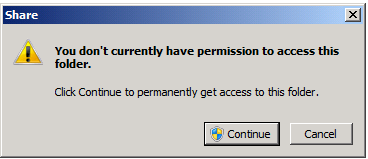
UAC requesting permission to continue

My first thought to this behavior was Explorer.exe not being able to elevate and the “split personality” i.e. the two security tokens involved when UAC is in effect. Here comes a more detailed explanation that I think is of interest to more. Note that this problem also covers some other scenarios such as AppLocker rules not appearing to work as intended for administrators. Read on to learn what is causing this.

First when UAC is enabled you get two security tokens when you log in, easily explained as one which contains the administrator privilege information and one which does not. Most of the times you run everything using the standard security token. When you for instance want to install software or change some system settings, then the security token containing the administrator privileges information is used.

If you do not explicitly request an application to launch with higher privileges, or the applications itself request higher privileges, all processes and applications run in the user context with the standard security token. Virtually all applications including Windows applications and processes are possible to elevate by right clicking and choosing “Run as administrator”. This is not true for Explorer.EXE though as all your attempts to elevate it will not result in any actual elevation. There are a few caveats with this and let us continue with the example of access certain files and folders.

So let’s have a look at what the ACL of the folder D:\Share looks like:

ACL of users\stenis folder before UAC continue

We can clearly see that there are no user accounts in this list. Under normal circumstances any user which is a member of the domain admins group should be able to access that folder but instead is presented with the UAC dialogue:

UAC requesting permission to continue

What happens when the user “stenis” in this case clicks “Continue” to that UAC dialogue box questions is that the ACL is populated with the user account in questions:
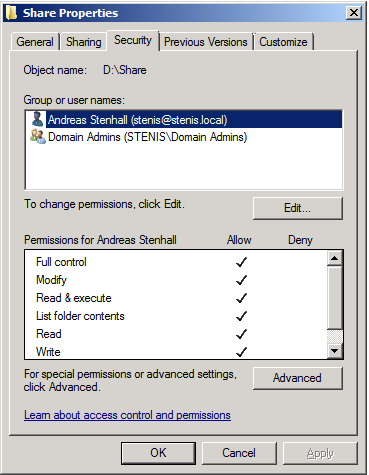
ACL of users\stenis folder after UAC continue

This happens because the fact that Explorer.exe cannot be elevated the normal Windows Explorer does not see that the user account should be able to access that folder. It is easy to verify as you can actually run Explorer.EXE elevated by changing the registry setting “RunAs” to “_RunAs” in HKEY_CLASSES_ROOT\AppID\{CDCBCFCA-3CDC-436f-A4E2-0E02075250C2}. Thanks goes to Andre Ziegler for this finding.

So what does this tell us? It is a somewhat strange problem but still by design. The fact is that this “problem” is not applicable to the folder and file access as described in this blog but also for AppLocker rules for instance, as many domain administrators must choose “Run as administrator” to be able to run software which they think they should be able to run without this little procedure.
Download Internet Explorer 9 beta now

So the beta release of Internet Explorer 9 has been released for public download. I’ve only been using it for a very short period of time but I can really notice the improvements in performance. Download now from
http://windows.microsoft.com/sv-SE/internet-explorer/download/ie-9/worldwide

EDIT: Woohoo, finally a download manager within Internet Explorer. And that also means that the downloads are downloaded directly to the destination folder instead of passing through the Temporary Internet Files cache.

Beta testing service packs for Windows can be scary stuff

When the SP1 beta for Windows 7 and Windows Server 2008 R2 was released a couple of months ago I pushed it in onto my Windows 7 machines without blinking. I was also about to install it (using the Windows Update script) on my Windows Server 2008 R2 Hyper-V server but thought twice as I cannot live without my virtual machines and I use many of them in my daily work.

Anyway I was kind of suprised the other day when I rebooted the Hyper-V server only to learn that the service pack was installing. Aaargghhh! I do not blame Microsoft, I blame my own stupidity. But hey, everything worked fine afterwards and by reading the release notes I can sleep good at night knowing there won’t be any problems when the next SP1 release comes.

Once you have installed this service pack, you will have to uninstall it prior to installing a later release of this service pack. The settings of any virtual machines will remain intact during the uninstallation and installation, but virtual machines that have RemoteFX or Dynamic Memory enabled will not appear in Hyper-V Manager while the service pack is removed. In addition, any snapshots taken when RemoteFX of Dynamic Memory was enabled will not appear in Hyper-V Manager. They will reappear and functional normally once the later release of SP1 is installed.

Lesson learned; check!

Look at the application to manifest to see the requested execution level

Yesterday I blogged about the classic shim for suppressing the UAC prompt for certain applications. To determine why an application requests an UAC prompt you can look at the application manifest, if it has one at all. The handy little tool ManifestView lets you load an EXE file and see which requested execution level the developers have set for it.

If you should find the requested execution level to be set to something you do not like, for instance “runAsAdministrator” when what you actually want to do is to run is as a standard user, you can apply a shim to the EXE file to solve that problem. Be aware that most of the times the higher execution level is set for a reason but that does not mean you can still fix the problem, sometimes by modifying file and registry permissions for instance.

Classic shimming tip for forcing apps to run without UAC prompting

If you during your way in testing app compatibility with Windows 7 encounter an application that require a UAC prompt to launch you can suppress this UAC prompt by creating a more or less classic shim “RunAsInvoker”. A few years ago Microsoft posted this as a KB article but not long after it vanished. Now the guide for creating this shim is available in Ask The Performance Team blog and I strongly suggest you put this shimming tip in mind because it might come in handy when you least expect it.

Modify default profile in Windows 7 with the least amount of effort

I’ve received a question on why Microsoft stopped supporting the old way of making changes to the default user profile in Windows 7. As you might already know the only supported way to make changes to the default user profile is to make them with a local user account and then sysprep the image with an answer file containing CopyProfile=TRUE.

The question or should I say problem is that the user in question find it ineffective to make changes to the default user profile, by installing the image to a machine then make the changes and once again to sysprep and capture the image.

Fortunately there is a much more effective way to make changes (though unsupported). Just mount the image using imagex or dism, and then add or remove the files you want. If you want to change some settings they most likely stored in the registry so then you can just start the regedit.exe utility as usual and then mount the ntuser.dat file within the image to make the changes and when done just applying the changes and you are done!

Case of the AppLocker default rules issue

If you have started using AppLocker with Windows 7 you know that the default rules for executable files make sure that administrators can run anything on the box, and that everything from the Windows folder and Program files folder are allowed to be executed. There exists a slight problem with this set of rules.

The default rules are intended for non-administrator users on the machine to be prevented from running any software which is not already installed or managed centrally, in the Program files folder. The default rules are also intended to allow anything from the Windows folder to be executed. Both these rules are sort of safe, as a standard user per default cannot put files in the program files folder to execute them, nor anywhere in the Windows folder.

But, there is this but. Inside the Windows folder there is a folder called “temp”, which believe it or not, standard users can write stuff to and consequently executing it thereby bypassing all the nice security benefits that AppLocker provide.

Well, the standard user just cannot copy an executable to the Temp folder using Windows Explorer, but using traditional copy commands using the command prompt this is fine, and then the executable can be executed.

The problem here might not be that the average user can bypass AppLocker this way, but when securing servers or clients, potential attackers can use this to bypass your security rules.

A simple solution if running with the default rules is to simply add the Windows\Temp folder to the exception list, effectively blocking code from being executed.