Month: May 2008

No new kernel in “Windows 7”, welcome killer compatibility!

Microsoft is now announcing some information about Windows Vistas successor with codename “Windows 7”. There wil be no all new kernel in “Windows 7”, instead Microsoft will improve the kernel from Windows Vista and make it more componentized.

Killer compatibility is something that is coming in “Windows 7”, as “all” applications and drivers that work in Windows Vista also will work in “Windows 7” thanks to “Windows 7” being based on the same kernel as Windows Vista. Looking forward to the beta program for “Windows 7”!  
“Fix” the compatibility problems with IE8 beta

Some time during the third quarter this year the next beta of Internet Explorer 8 will be released. Microsoft is already asking people, webmasters specifically, to update their web sites to be Internet Explorer 8 compatible. IE8 follow web standards in a new way and this causes quite a few web sites to look not so good in Internet Explorer 8 native mode.

Of course the best option is to make your web site follow the standards but in any cases where this is not possible, due to lack of time, money or knowledge there is a snippet of code that you can add to your web sites to make Internet Explorer 8 render them as if they were interpreted in Internet Explorer 7.

The below snippet of code must be placed directly after the <head> tag.

<meta http-equiv="X-UA-Compatible" content="IE=7">

Adding this tag is equal to running Internet Explorer 8 in the “Emulate IE7” mode.

More information: Your Web site may not display correctly in Internet Explorer 8 Beta 1

Collection of best practices guides

Microsoft is providing best practice analyzers for most of their server products and I have gathered them on a list, for your convenience. These best practices analyzers are extremely good for troubleshooting and for making sure that the servers are performing at their best. Here is the link for the article:
http://www.theexperienceblog.com/technical-articles/collection-of-best-practices-guides/

Filtering policies in new Group Policy management tool

When you install Vista Service Pack 1 the old GPMC.MSC control panel is removed. The reason for this is that there is a new and improved Group Policy management tool released in the Remote Server Administration Tool kit that was released slightly after Service Pack 1 was released to the public.

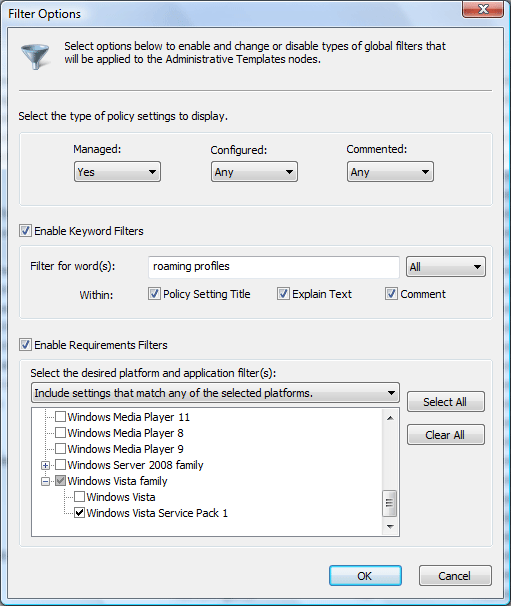
One of the new features of the new Group Policy management tool is that you can filter policy settings. Directly under “Administrative templates” for both Computer and User Configuration there is a new “All settings” category which lists all settings in “Administrative templates”. If you select “All settings” you might then right click anywhere and choose “Filter options”. It looks like the screenshot below.

Group Policy Filtering

By entering the information you are looking for it is very easy to find the group policy settings that you are looking for. This is becoming more and more necessary as the number of policies grows by hundreds or nearly a thousand for every new Windows version released and it is hard to find the setting one is looking for.

Download Remote Server Administration Tools (x86)
Download Remote Server Administration Tools (x64)

Warning for using Vista Offline files with NAS devices

This is just a warning to anyone thinking about using Offline files in Windows Vista together with a NAS device. The Offline files feature is activated by default on all folders which you redirect when using Folder Redirection. The problem is that the Offline files feature is not supported by all NAS devices out there.

The Windows Storage Team posted a blog notice about this more than a year ago but this is worth mentioning again. Although they provide a solution for NAS devices using Samba (which many does) there is no guarantee at all that the NAS device has the correct version of Samba or even support making the necessary changes.